Prerequisites
- Set up your Ambient Weather station and connect it to the internet - follow the user documentation that came with your station.
- Access the Ambient Weather administration - the simplest option is to use the AWNET mobile application.
Steps
The exact configuration options may vary depending on your firmware version.
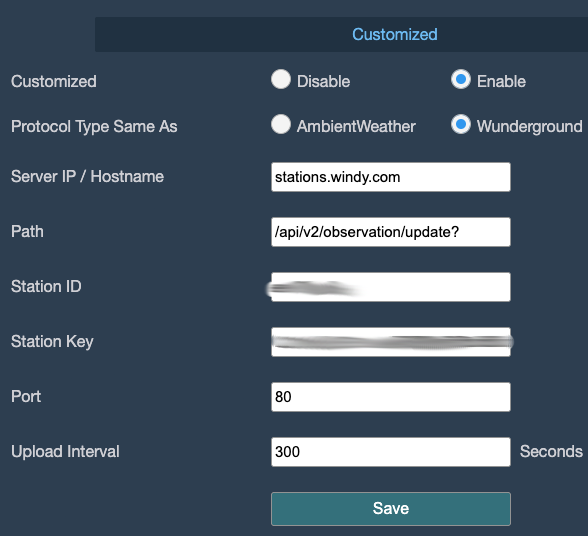
- Open the AWNET application and choose your station.
- Navigate to Device Settings -> Customized (or Customized Server).
- Select Enable.
- Fill in the following fields:
- Protocol Type:
Wunderground - Server / Hostname:
stations.windy.com(do not includehttp://,https://, or a trailing slash/) - Port:
80for HTTP, or443if your station supports HTTPS - Path:
/api/v2/observation/update?(include the final?exactly as shown) - Station ID: enter the Station id of your station
- Station Key / Password: enter the Station password of your station
- Upload interval:
300means 5 minutes. Do not send data more often than once every 5 minutes; otherwise, your requests will be blocked by the rate limiter. You can use a longer interval if needed.
- Protocol Type:
- Save your changes by clicking the
Savebutton.
You can find your Station id and Station password on the station detail page in Windy Stations: My Stations -> station -> Connection.